Songstand
Songstand helps you keep track of your practice. Time your sessions, record yourself, organize your sheet music, and review your practice history. Start with whatever you want to work on, or follow a saved routine or plan. Songstand runs on iPhone, iPad, and iPhone Duo.
Getting started
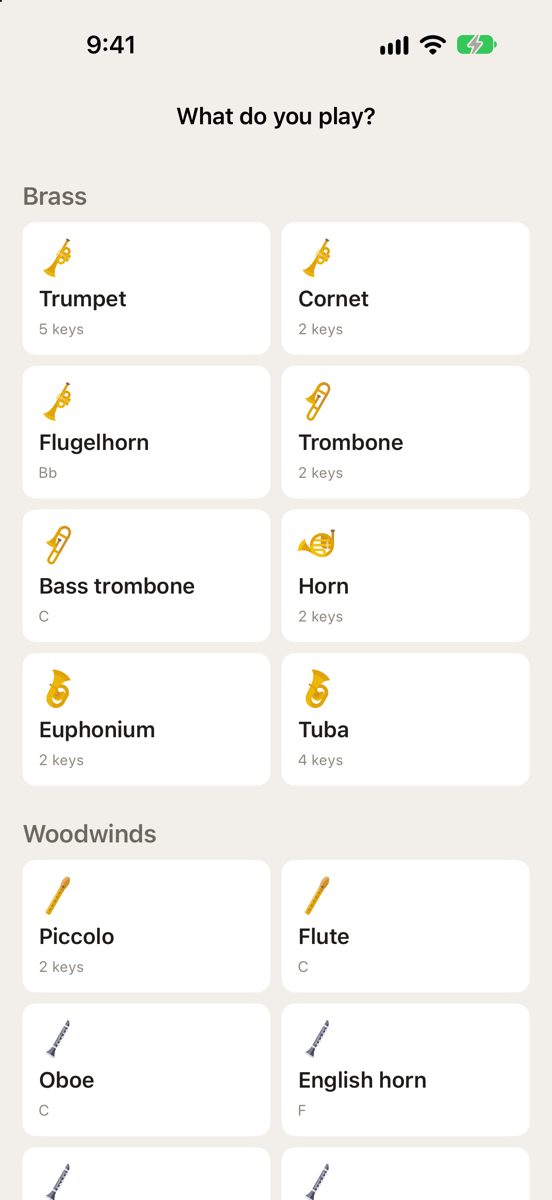
When you first open Songstand, choose your instrument. Use the included exercises, routines, and plans for your instrument, or start with nothing and add your own material as you go.
To add another instrument later, go to Settings > My instruments.
If you already use Songstand on another device and you're signed in to iCloud, a new install shows Syncing with iCloud. Songstand waits for your data before it asks you to choose an instrument.
Exercises, routines, and plans
An exercise is one thing to work on, such as a scale or a passage from a piece. A routine groups exercises in the order you want to practice them. A plan is a series of routines and exercises scheduled over several days. Plans can be set to repeat at whatever interval you want. You can use all three, or none of them.
Free trial and unlock
Songstand is a free download with a 14-day free trial. The trial starts when you tap Start free trial, after you choose your instrument. If you tapped Not now, go to Settings > Try Songstand free for 14 days.
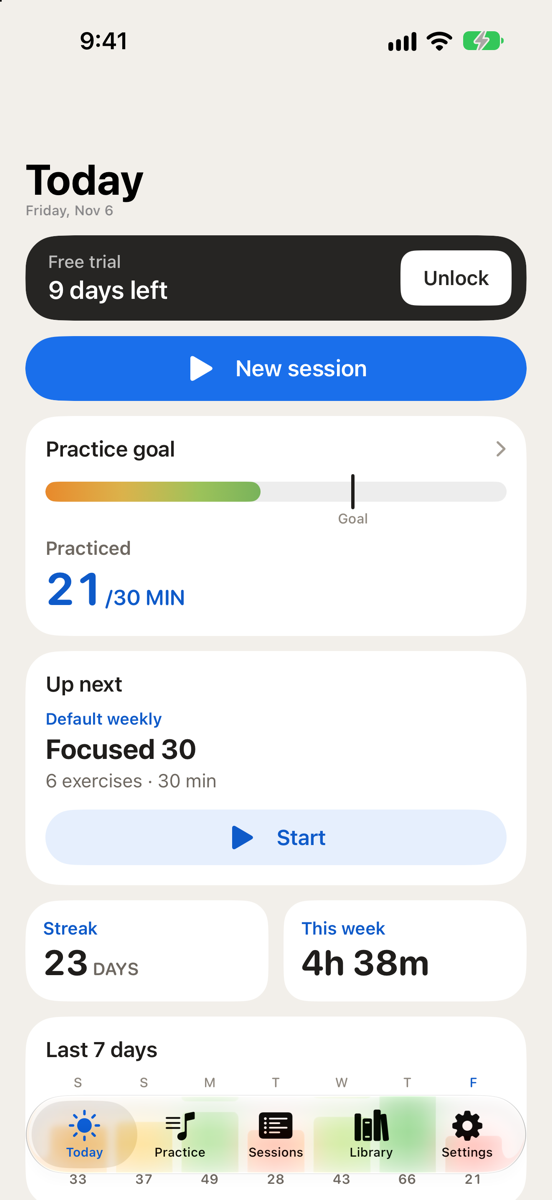
Today shows how many days are left in your trial. The banner turns red for the last three days.
After the trial, you can still open your music, play your recordings, and share, export, or delete anything. To add or change anything, unlock Songstand.
To unlock Songstand, tap Unlock on Today or in Settings. The unlock is a one-time purchase, not a subscription.
To restore a purchase on a new device, go to Settings > Restore purchase.
Practicing
Each time you practice, you start a session. When you save it, it's added to your practice history.
Start today's practice
Tap Start on Today.
- If you're following a plan, Songstand starts the routine or exercises scheduled for today.
- If you aren't following a plan, Songstand starts the routine you practiced most recently.
- If there's no routine or plan to start, or you want to start a session without one, tap the New session button.
Choose what to practice
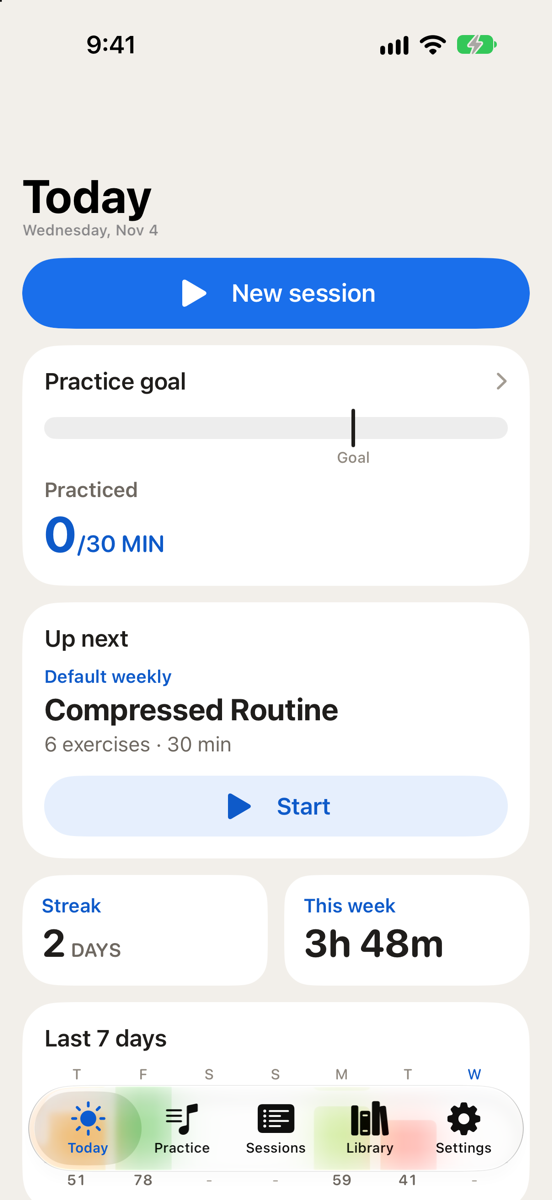
- On Today, tap New session.
- Tap Add exercise or Add routine, and choose what you want to practice.
- Tap Start session.
You can also start a session from any exercise or routine by tapping Start session on it.
Practice without a list
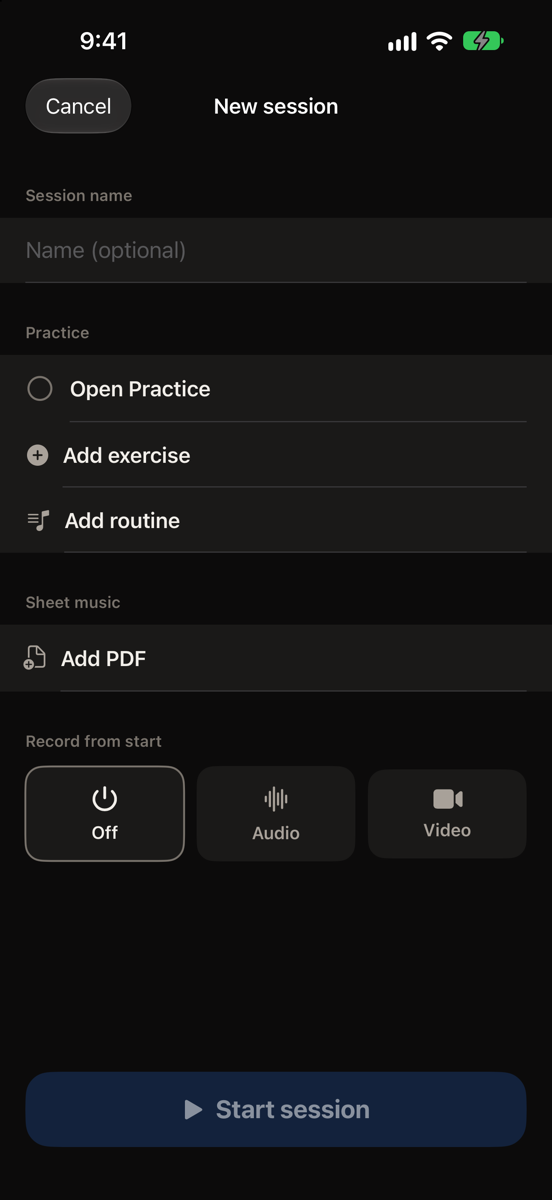
An open practice session has no set exercises. Songstand just times it. To start one, tap New session, tap Open Practice before you add anything, and tap Start Open Practice.
Shortcut: touch and hold the Songstand icon on the Home Screen and choose Start Open Session.
During a session
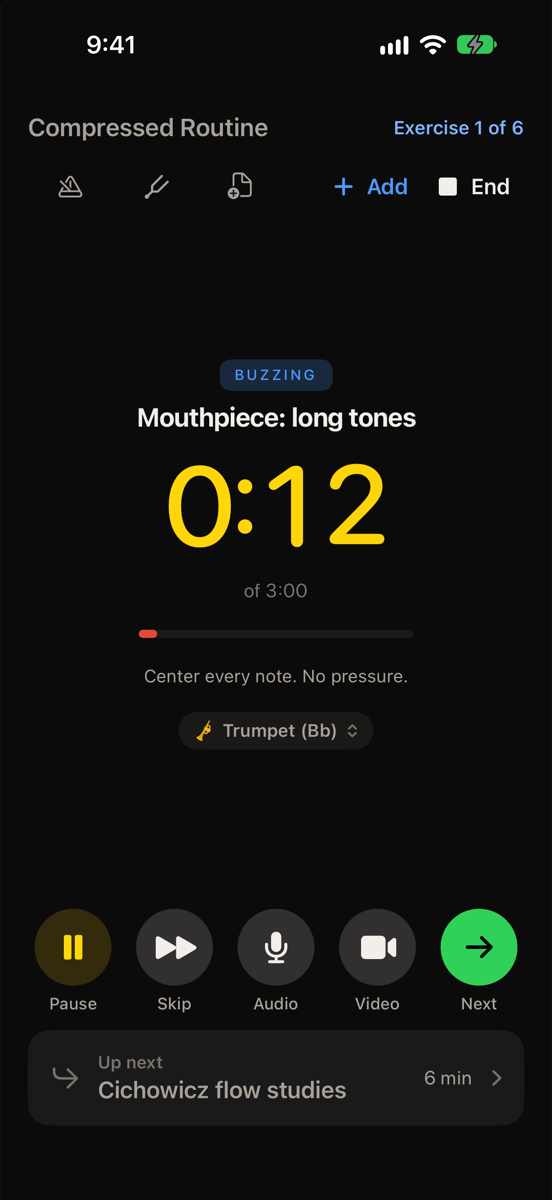
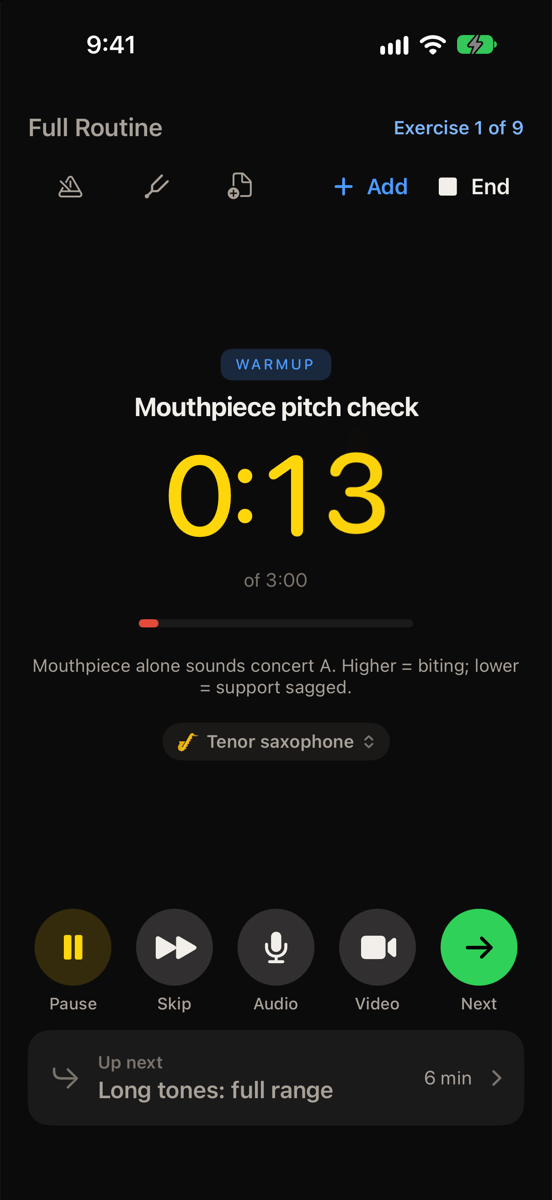
Tap Next when you finish an exercise, or Skip to move on without it. Tap Pause to stop the clock.
The timer turns green when you reach the exercise's target time. You can continue practicing after you reach it.
To add an exercise you didn't plan on, tap Add.
Record yourself
Tap Audio or Video to start recording, and tap the same button again to stop. You can record audio or video, but not both at once. Recordings are saved with the session.
To start recording automatically at the beginning of a session, go to Settings > Record from start and choose Audio or Video.
Use sheet music
If an exercise has sheet music linked to it, the music opens when you reach that exercise. To open a different PDF, or to hide the music, tap the sheet music button. To link music to an exercise, see Link sheet music to an exercise.
Finish a session
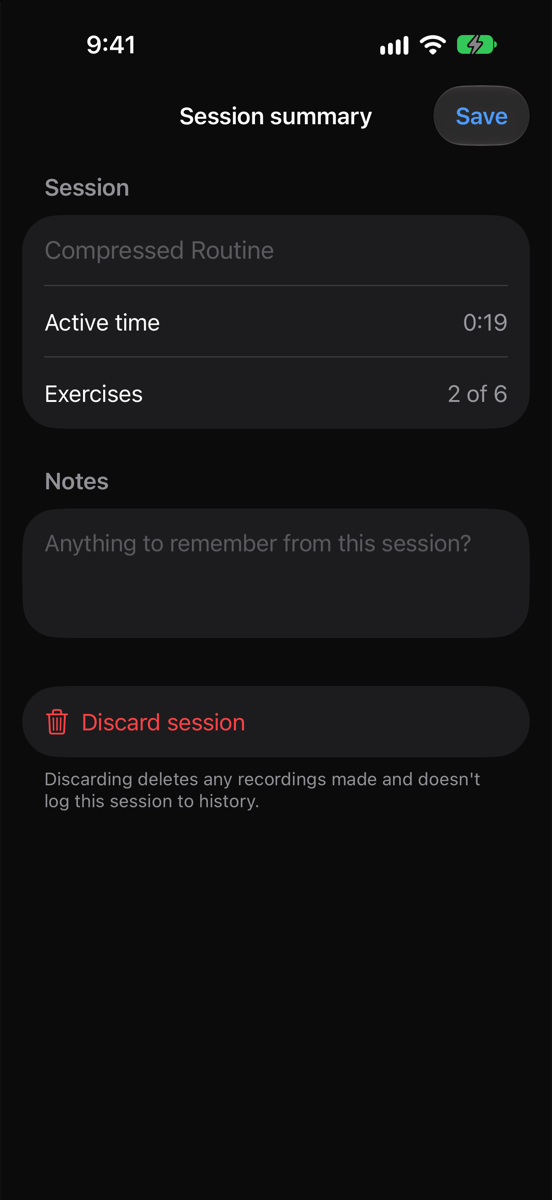
- Tap Finish after the last exercise, or End to stop early. The time you've practiced will be tracked.
- Add a name or notes if you want.
- Tap Save.
If you practiced two or more exercises without using a routine, you can tap Save as routine to keep those exercises as a routine.
To delete the session and its recordings instead, tap Discard session.
Metronome and tuner
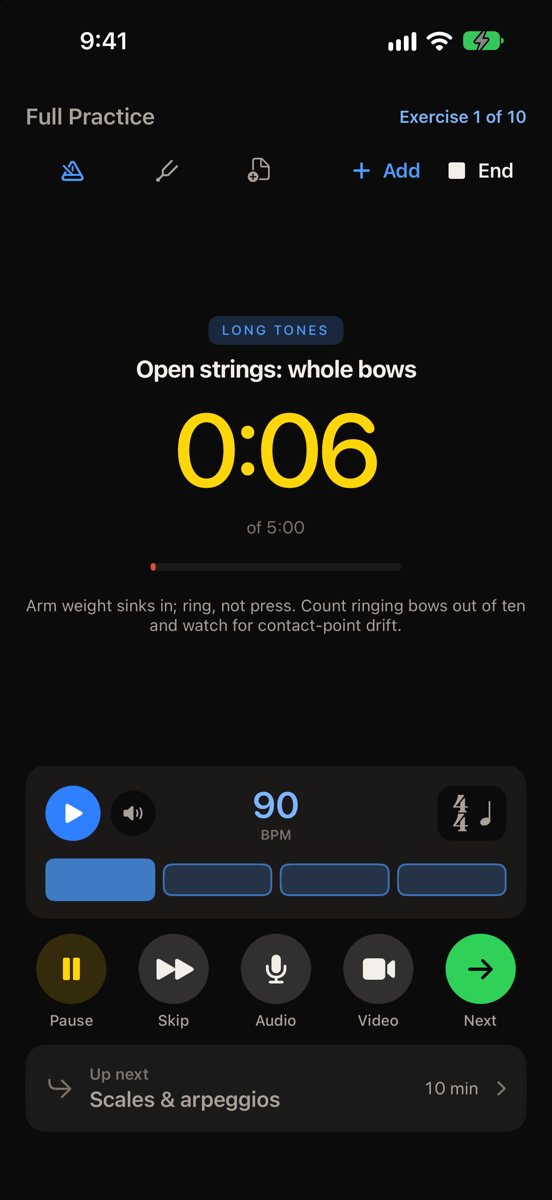
The metronome and tuner buttons are in the row under the session title.
Metronome
- To set the tempo, tap the number and enter a new one, or drag up or down on it.
- To choose a time signature and a subdivision, such as triplets or swing, tap the time signature.
- Tap a beat to accent it or mute it.
- Tap the speaker to turn the sound off. The screen still flashes on each beat.
The default metronome tempo is 90 BPM. You can change this by visiting Settings > Metronome and tuner > Default tempo.
Tuner
Tap the tuning fork button and play a note. The tuner shows the note and how many cents sharp or flat you are. The note turns green when you're within 5 cents.
If you play a transposing instrument, such as a B-flat trumpet or an E-flat alto sax, you can choose how the tuner names notes. Concert shows the pitch that sounds, the same as a piano. Match instrument shows the note as written in your part. You can change this by visiting Settings > Metronome and tuner > Pitch, or from the menu in the tuner.
The default reference pitch is A = 440 Hz. You can change this from A = 415 Hz to A = 466 Hz with A reference in the tuner.
Exercises, routines, and plans
You'll find all three in the Practice tab.
Exercises
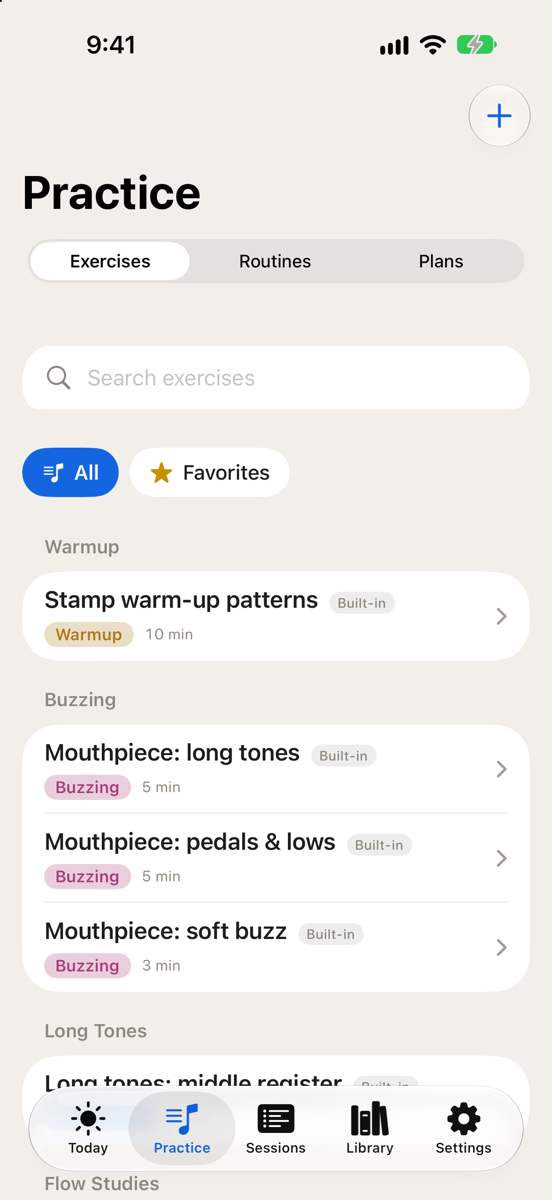
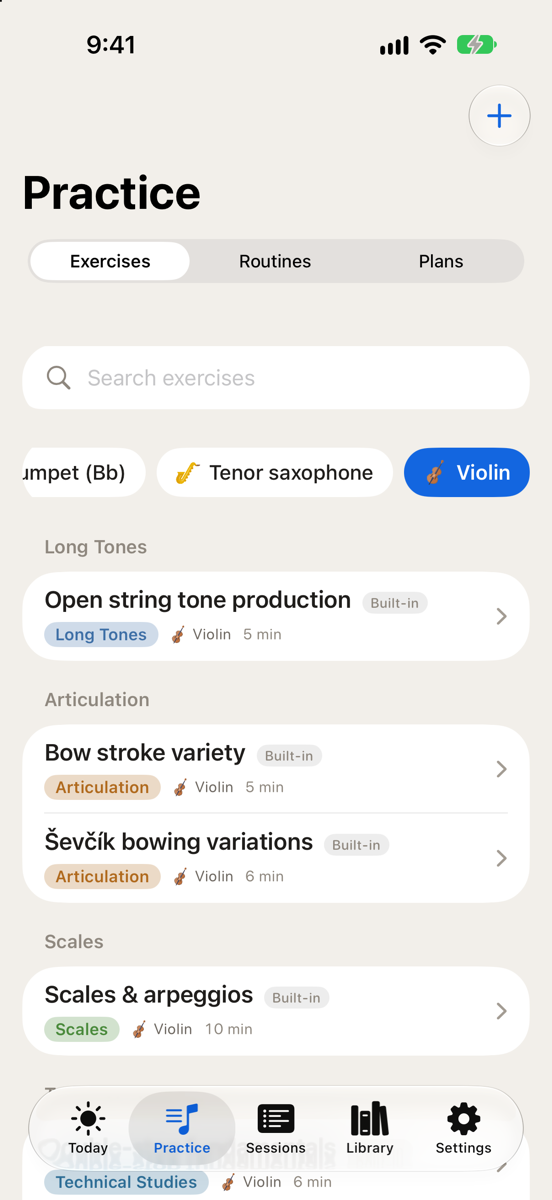
Search for an exercise, or filter by instrument or favorites. Tap an exercise to see its details or to start a session with it.
To create an exercise, tap the Add (+) button and choose New exercise. Enter a name, type, and target time, then tap Save.
To change an exercise, swipe left on it and tap Edit. To keep the original and change a copy, tap Duplicate instead. Built-in exercises can be edited and deleted like your own.
Link sheet music to an exercise
When an exercise has linked pages, they open during a session as soon as you reach that exercise. The PDF needs to be in your Library first.
- In Exercises, tap the exercise.
- Tap Add PDF.
- Choose a document, then use the Page control to choose the page.
- Tap Add.
You can also link pages while editing an exercise, in the Linked PDFs section. Tap Save when you're done.
Routines
To create a routine:
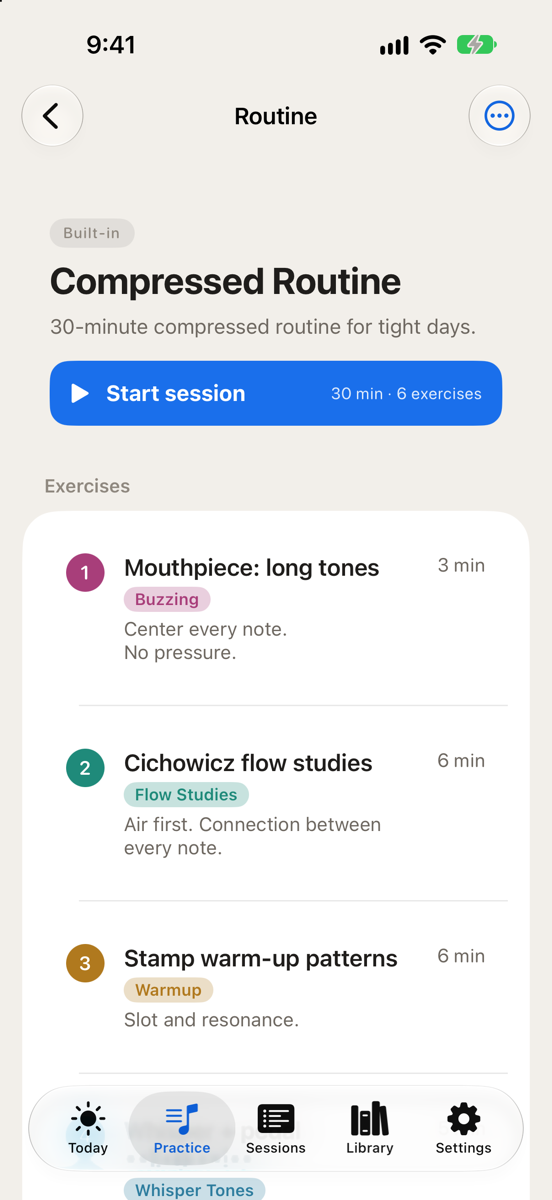
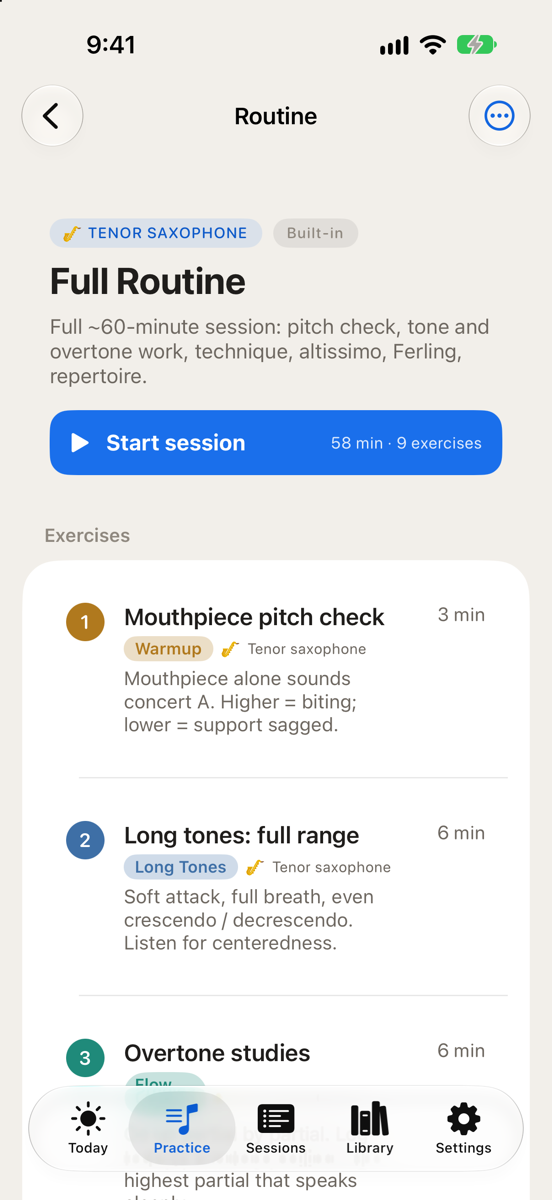
- In Routines, tap the Add (+) button and choose New routine.
- Name the routine and tap Add exercise to add each exercise.
- To change the order, tap Edit above the list and drag the exercises.
- Tap Save.
To change an exercise's time or notes in just this routine, tap the exercise in the routine.
To practice a routine, tap it, then tap Start session.
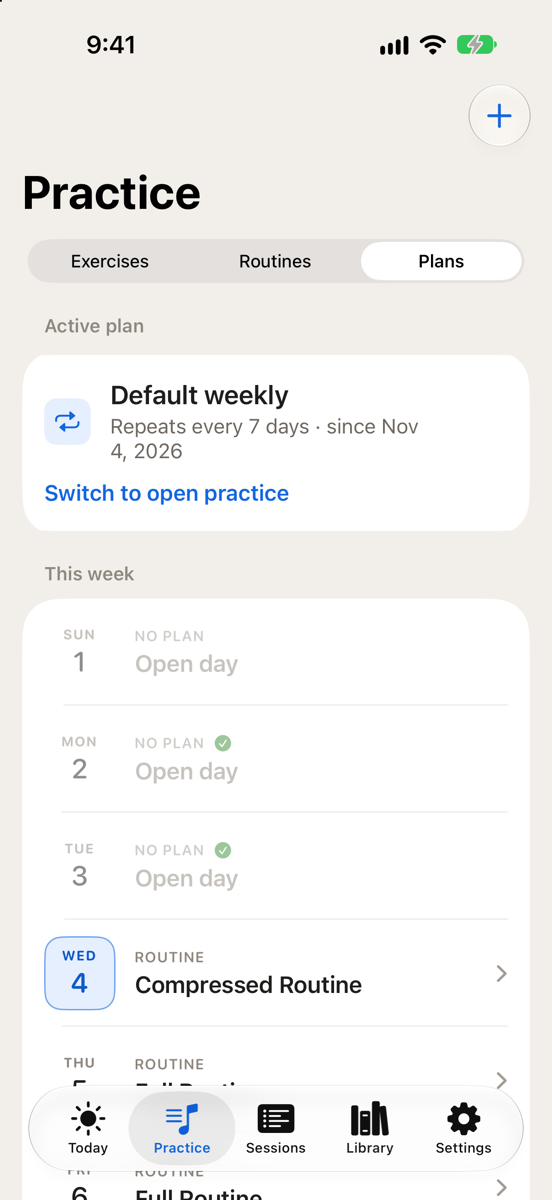
Plans
Each day in a plan can be a routine, a set of exercises, a rest day, or something else, such as a lesson. A plan can repeat or run for a set number of days.
To create a plan:
- In Plans, tap the Add (+) button.
- Set the plan's Length in days, and turn on Repeats if you want it to start over when it ends.
- Tap each day and choose what goes on it.
- Tap Save.
To follow a plan:
- Open the plan and tap Activate.
- Choose Today or Pick a date for day 1.
- Tap Make this my plan.
You can follow one plan at a time. Today shows the practice scheduled for that day. To stop following a plan, tap Switch to open practice at the top of Plans.
Sheet music
Add music
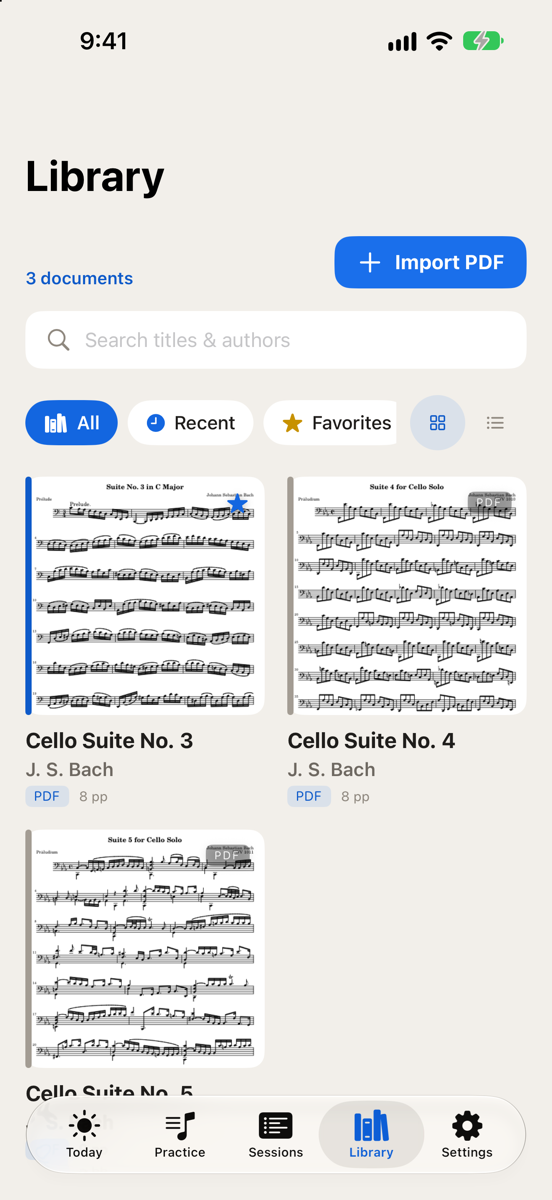
In Library, tap Import PDF to add PDFs from Files, or Scan paper to scan printed music with the camera.
Touch and hold a document to favorite, rename, share, or delete it. Deleting a document can't be undone.
Read and mark up
Swipe to turn pages and pinch to zoom. Tap the page to show or hide the controls.
You can write on the music with Apple Pencil at any time. To write with your finger, tap the Annotate button (the pencil). While it's on, swiping draws on the page, so use the arrow buttons to change pages. Tap it again when you're done.
Bookmarks
Tap the bookmark button and choose Bookmark this page. To go to a bookmark, tap the bookmark button and choose All bookmarks.
Your progress
Daily goal and streak
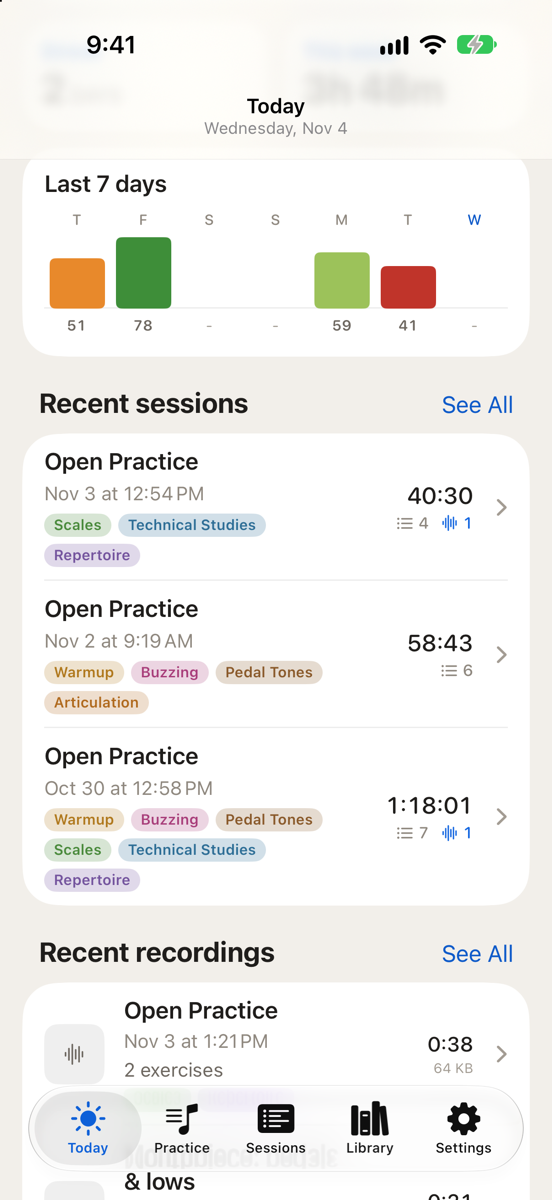
The bar on Today fills as you practice. To change your daily goal, tap the bar.
Your streak is the number of days in a row you've practiced.
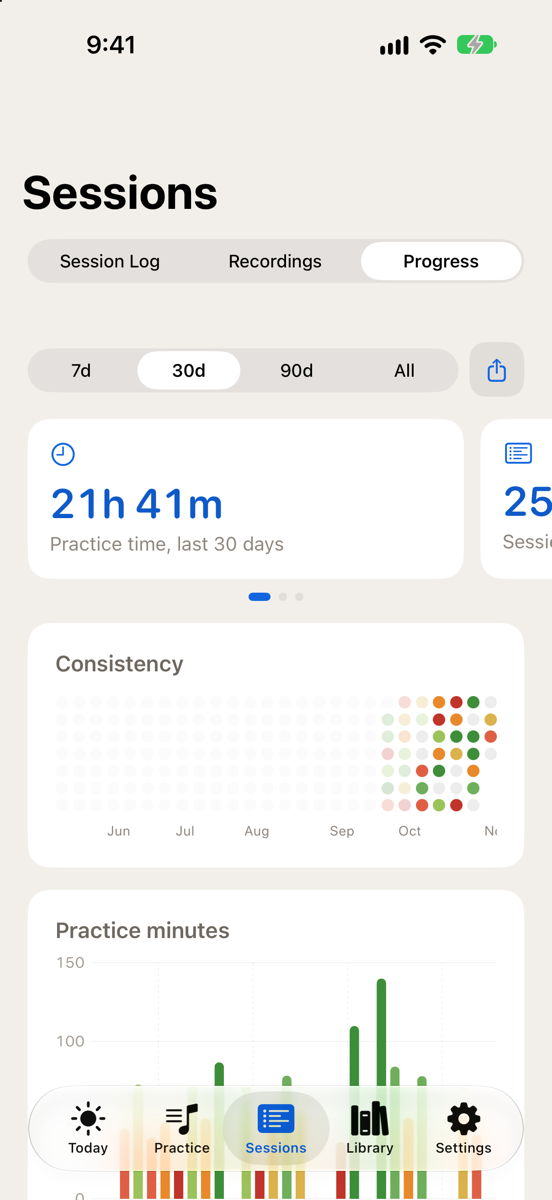
In the seven-day strip and the Progress charts, color compares each day with the others shown. Red marks the days with the least practice, and green marks the days with the most.
Past sessions
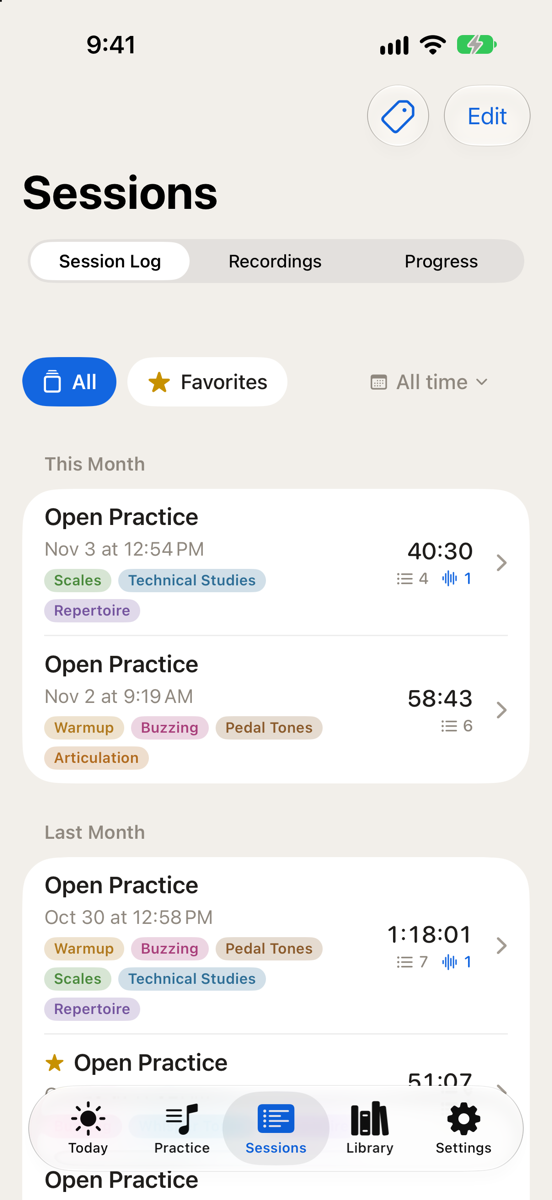
Go to Sessions > Session Log to see every session you've saved, newest first. Tap a session to see what you practiced, your notes, and your recordings.
Swipe right on a session to make it a favorite.
Progress
Go to Sessions > Progress to see your practice time, streak, and most-practiced exercises for the last 7, 30, or 90 days, or all time.
To share your progress, tap the share button. Songstand makes an image with your practice time, sessions, streak, and a chart of daily minutes for the range you chose.
Recordings
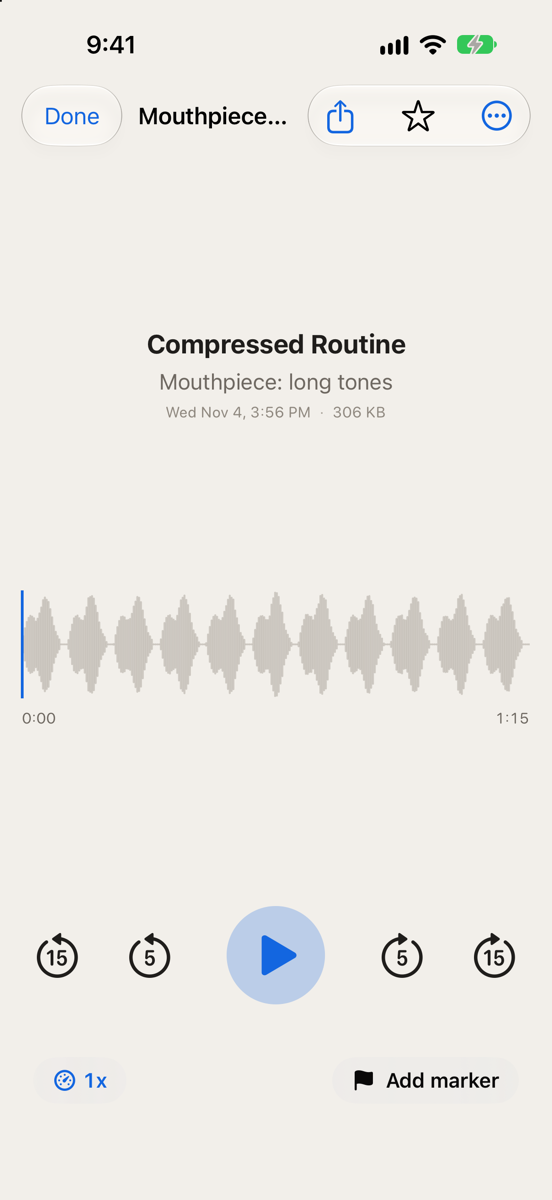
Go to Sessions > Recordings. Tap a recording to play it.
- To change the playback speed of an audio recording, choose from 0.5x to 2x.
- To mark a spot, tap Add marker and add a note if you want. Tap a marker later to go back to it.
- To cut the start or end, tap Trim. To undo a trim, tap the More (•••) button and choose Revert trim.
Recordings stay on the device that made them. Your other devices list them but can't play them.
Sharing and importing
Share an exercise, routine, or plan
- Swipe left on the exercise, routine, or plan and tap Share.
- To include your markings on linked sheet music, turn on Include annotations.
- Tap Share Songstand bundle and choose how to send it.
The other person needs Songstand to open it. Linked PDFs are included.
Import from another Songstand user
Open the file from Files, Mail, Messages, or AirDrop. You can also import from the Add (+) button in Exercises, Routines, or Plans. A plan you import isn't active until you activate it.
Settings
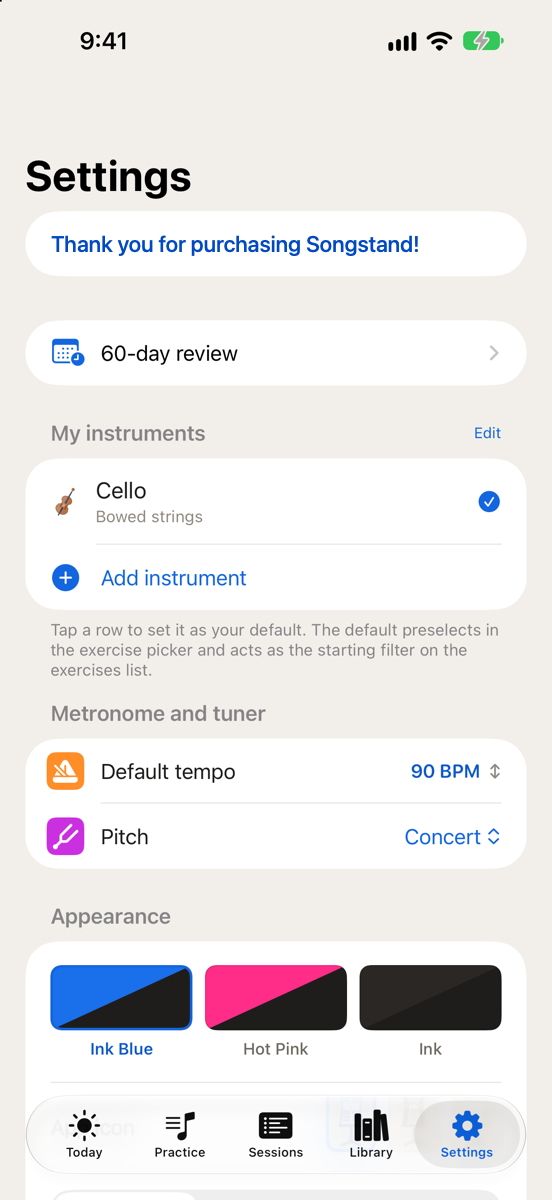
- Free trial. Shows the days left in your trial, with Unlock and Restore purchase. After you unlock Songstand, it says Thank you for purchasing Songstand! instead.
- My instruments. Add or remove instruments, and choose your default. Removing an instrument keeps your history, and adding it back restores its exercises and routines.
- Appearance. Choose a color, an app icon, and light or dark mode.
- iCloud. Shows sync Status and when it Last synced. If you aren't signed in to iCloud, it asks you to sign in.
- Record from start. Starts audio or video recording at the beginning of a session.
- Storage. See how much space your PDFs and recordings use.
- Reset all data. Deletes your routines, exercises, plans, sessions, recordings, documents, and instruments. When iCloud sync is on, it also deletes them on your other devices. This can't be undone.
- About. Shows the version, with links to Support, the Privacy Policy, and the Terms of Use.
iCloud sync
Songstand syncs whenever you're signed in to iCloud. Your practice history, exercises, routines, plans, and sheet music stay up to date on all your devices. Recordings don't sync.
To stop syncing, open the iOS Settings app, go to [your name] > iCloud, and turn off Songstand.
Widgets
Songstand has two Home Screen widgets. Practice Days (medium) shows your last seven days of practice. Practice Streak (small) shows how many days in a row you've practiced.
Common questions
Why can't I turn pages with my finger?
When finger drawing is on, swiping draws on the page instead of turning it. Use the arrow buttons to change pages, or tap the Annotate button to turn finger drawing off. See Read and mark up.
Where did the metronome go?
The metronome is hidden while sheet music fills the session screen. Tap the sheet music button to hide the music, and the metronome comes back.
My recordings aren't on my other devices.
Recordings stay on the device that made them, even with iCloud sync. See Recordings.
I removed an instrument by mistake.
Add it back in Settings > My instruments. Its exercises and routines come back, and your history was never removed. See Settings.
How do I get support?
Email hello@songstand.app. Tell us your device, your iOS version, and what happened. A screenshot helps.